Clean Ui – Texture Pack
- 29-04-2026, 05:50
- 1 108
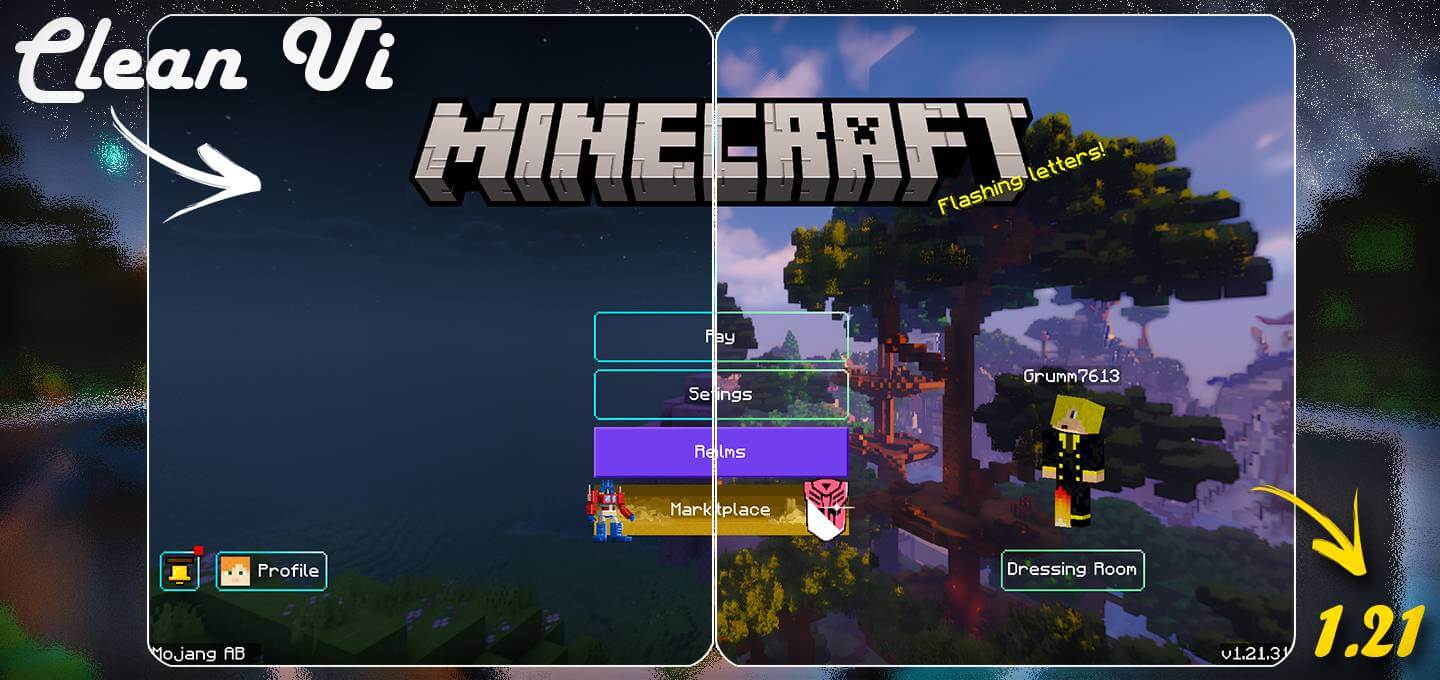
Clean Ui Texture Pack will update your game interface and make it more interesting. Clean UI gives Minecraft’s menus and interface a different look, with a coordinated design that reaches beyond the main screen. The pack changes familiar places such as the settings, inventory and crafting interface, so you’ll notice it throughout an ordinary play session. It also offers blue and green themes, letting you choose the color you prefer. If you spend a lot of time building, crafting or organizing items and have grown tired of the usual menus, this is a way to refresh them while keeping their familiar purpose.
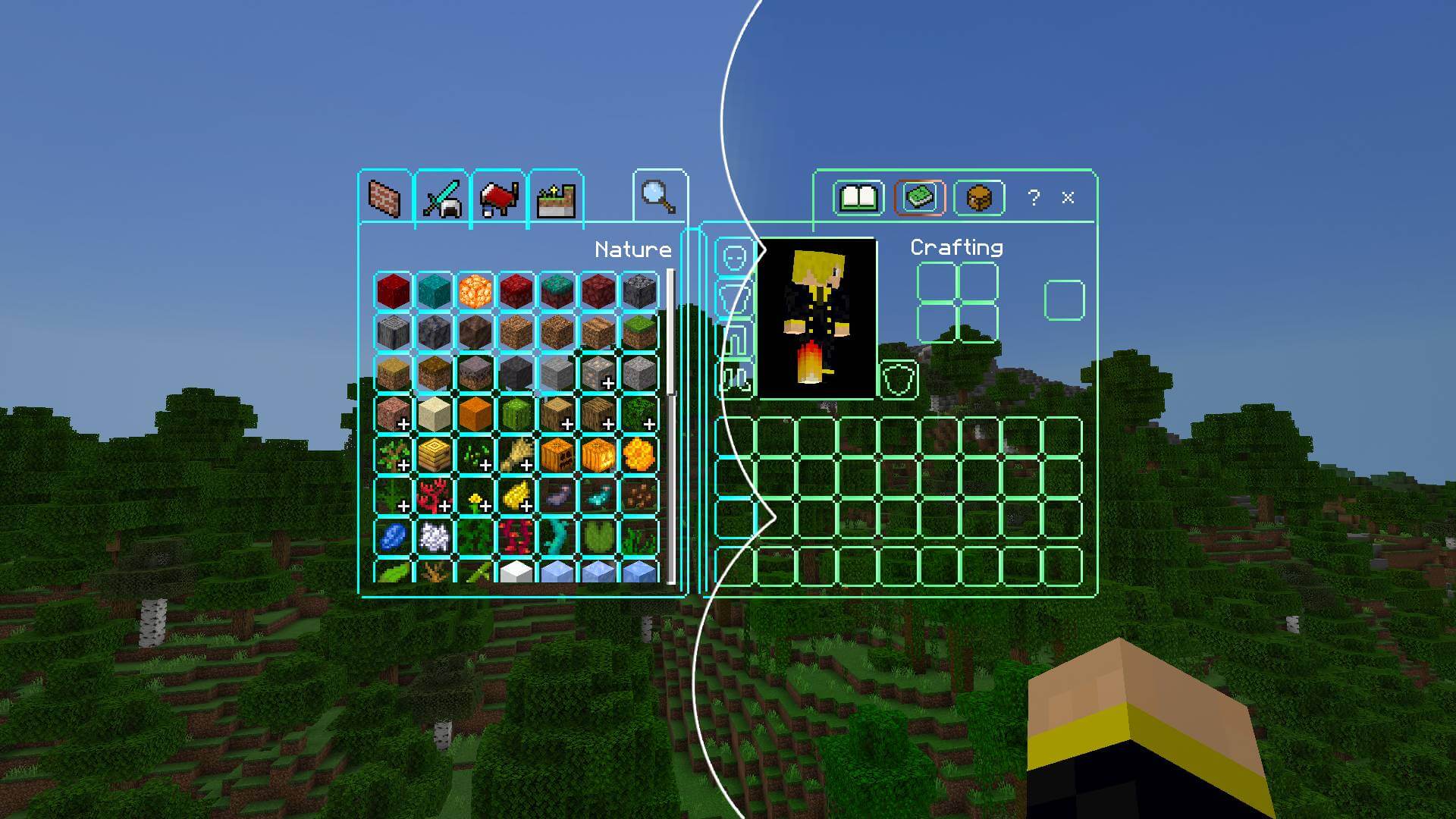

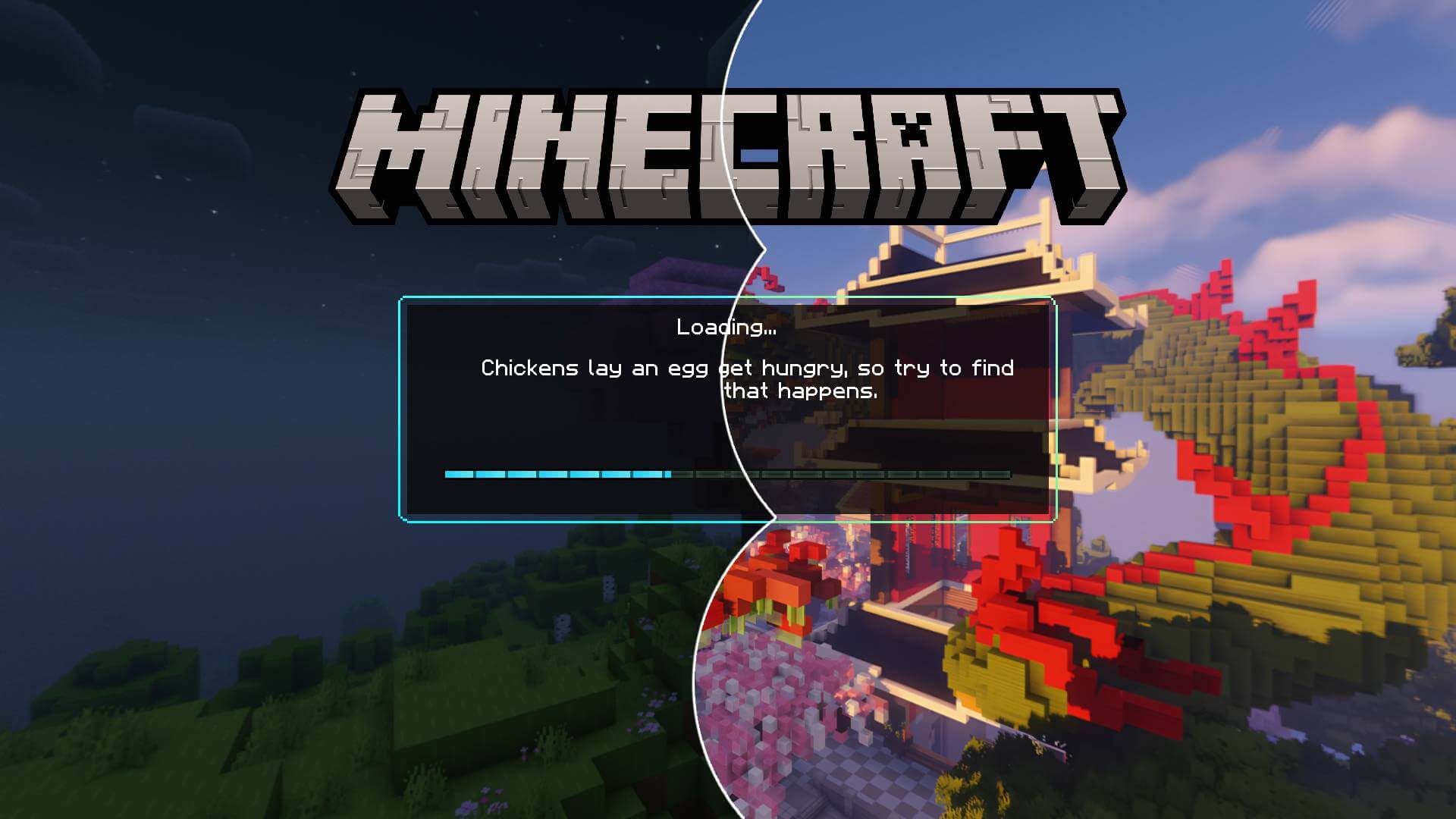
The main menu is where you’ll likely see the new style first. Clean UI includes a themed panorama and a smoother font, giving the opening screen a more consistent appearance. The colors carry through into other parts of the interface, so the design feels connected as you move from the main menu to your settings or into a world. Blue uses a dark background with red accents for selected controls, while the green theme pairs its main color with darker backgrounds and brown accents. Neither choice changes what you can do in Minecraft; it gives you a different look for the screens you use to get there.
Once you’re playing, the inventory and crafting interfaces are some of the places where the changes become most noticeable. They use transparency, allowing you to see some of the world behind the menu. That can be pleasant when you’re sorting a full inventory or making supplies before heading out. Instead of feeling completely separated from your surroundings, you still have a view of the place where you opened the interface. The settings screen also uses a transparent background, so you can adjust an option and remain visually connected to the game world.
Clean UI includes changes for players using mobile controls. The on-screen buttons receive updated textures, and the controls have animations when pressed. If you play on a phone or tablet, those buttons are part of nearly everything you do, from walking around your base to fighting mobs. A new appearance for them can make the screen feel different even when the actions themselves are familiar. It’s worth spending a little time moving around and opening menus to see whether the design is comfortable for you, particularly if you’re used to recognizing the standard buttons at a glance.
There are practical additions alongside the visual changes. The chat interface includes buttons for navigating previous messages and other chat controls, while a fast-craft button is integrated into the interface. The best way to get familiar with them is to open the relevant screen and look at the available controls. You may find a feature you want to use often, or simply enjoy having the menus presented in a different style.
Clean UI is a good choice if you want Minecraft’s interface to feel fresher without choosing a texture pack that changes the look of your entire world. Pick the blue or green theme, open your usual menus and see how the design fits your way of playing. From the main menu to the crafting screen, it gives the parts of Minecraft you use every day a more unified appearance.
Installation:
- Download Texture;
- Open the downloaded .mcpack to install;
- Select texture in settings;
- Done.
Comments (0)