Dark Mode Theme Mod / Addon
- 18-03-2026, 07:26
- 426
Mods / Addons / Mods 1.26 / Mods 1.21
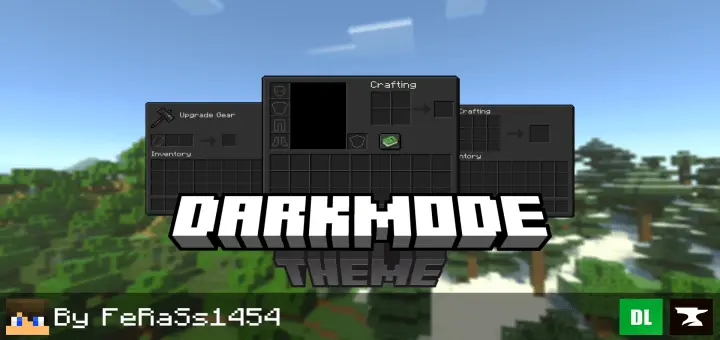
Dark Mode Theme Addon will change the game menu and UI in Minecraft to a dark theme. Opening your inventory is something you do constantly in Minecraft, often without thinking about it. You stop to check how much wood you have, make another pickaxe, or move a stack of food into your hotbar. Dark Mode Theme changes the look of those familiar screens by replacing the light interface with darker colors. The inventory, crafting screens, and other menus take on a more subdued appearance while keeping the game’s familiar layout. If you already use dark themes in other apps, this is an easy way to give Minecraft a similar feel. It’s a visual change you’ll notice in the small moments throughout a session: opening a chest, checking your supplies, or returning to the menu after an evening of building.
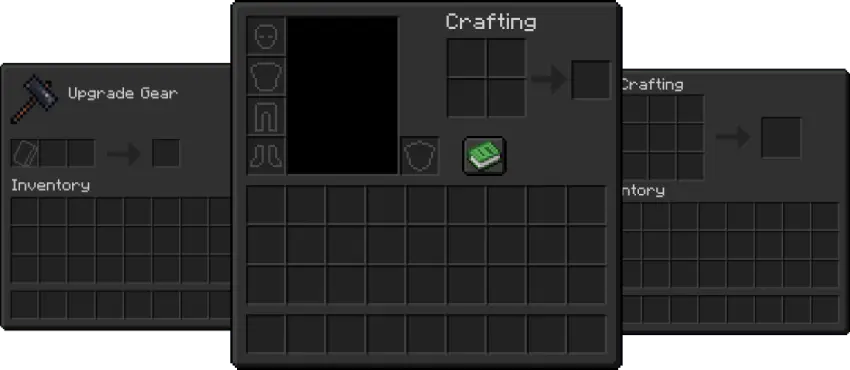
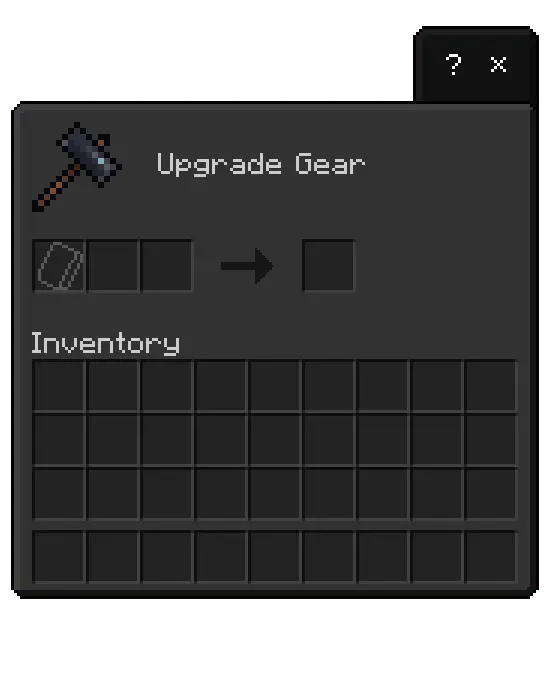
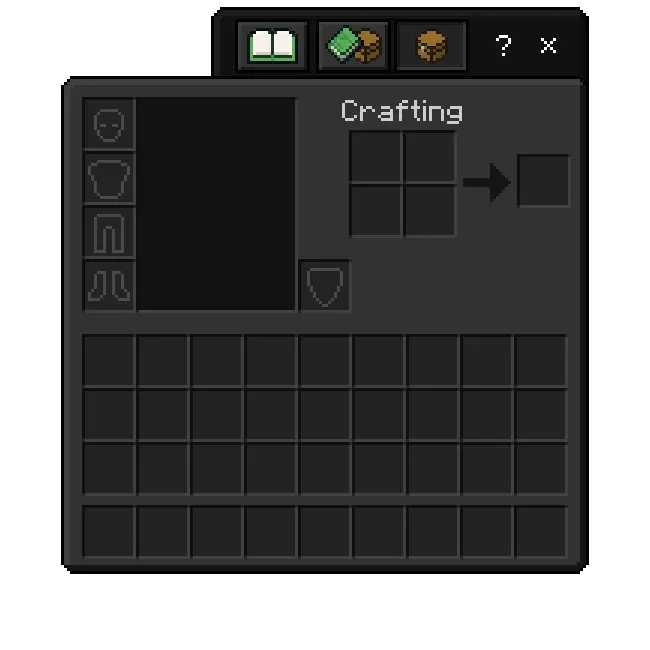
The darker interface is particularly noticeable when you spend a lot of time working at your base. Think about a typical building project: you open a chest for stone, return to the crafting table, check the furnace, and go back for the material you forgot. Each of those screens is part of the experience, even if the blocks you’re building with get most of your attention. With the theme active, their lighter panels give way to a darker style. The crafting grid and inventory slots are still where you expect to find them, so there’s no new system to learn before you can get back to work. You can continue sorting items and preparing materials as usual, just with a different-looking interface whenever you open a menu.
Dark Mode Theme can also sit alongside a texture pack that changes the appearance of your world. You might prefer one set of textures for your buildings and landscapes but still want darker menus when you open your inventory. If you use several resource packs together, place Dark Mode Theme above the other packs in the active list so its interface textures take priority. Then open a few screens to check the result: your inventory is a good place to start, followed by a crafting table and a chest. If a screen doesn’t look the way you expect, check the pack order in your settings. You can move packs around and compare the results until you find a combination you like. The theme suits players who want a quieter look for menus they use every day.
To install it, download the resource pack file and open it with Minecraft. Once the import is complete, activate Dark Mode Theme in your resource pack settings. You can apply it through Global Resources if you want the theme available across your game, or enable it in an individual world’s settings. Afterward, load a world and spend a few minutes doing ordinary tasks: craft an item, open a container, and look through your inventory. That’s the easiest way to decide whether the darker panels suit you. The pack doesn’t ask you to start a new adventure or change your routine; it gives the screens you already use a fresh appearance. If you prefer the original look later, you can return to your resource pack settings and turn the theme off.
Installation Mod:
- Download the .mcaddon / .mcpack;
- Open the file to import into the game;
- In World Settings → Resource Packs and Behavior Packs, enable it (turn on Experiments if needed);
- Have fun!
Comments (0)