Ancient Ruins Review Map
- 18-02-2026, 12:39
- 1 794
Creation Maps / Custom Terrain Maps / Modded Maps
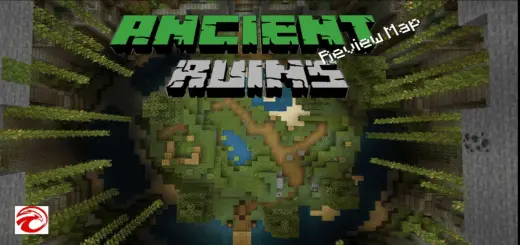
Ancient Ruins Review Map is a large and interesting project with its biomes, castles, PVP, caves, villages, oceans, blocks, mobs, equipment and soundtracks, shaders, add-ons and sky. A very large and cool project. A texture pack can make stone look incredible in a screenshot, then turn your favorite sword into a blurry mess. Ancient Ruins Review gives you a place to check both before you settle into a long survival session.
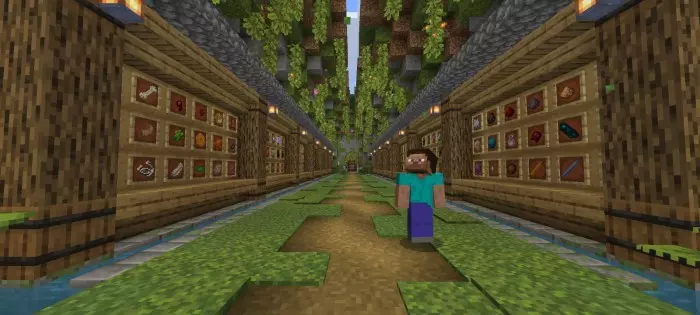
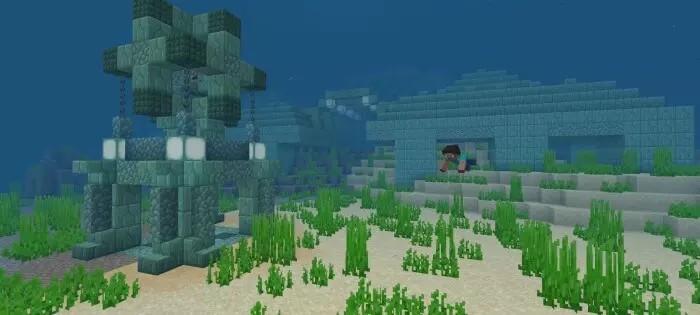
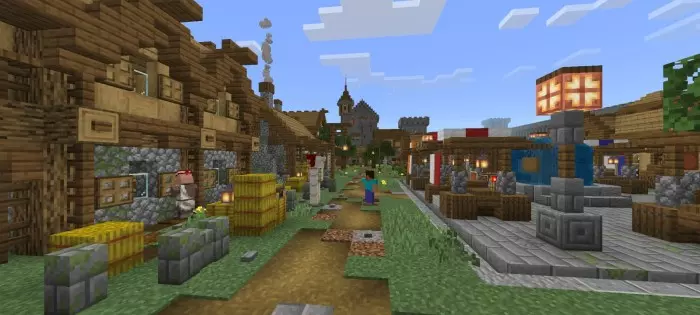
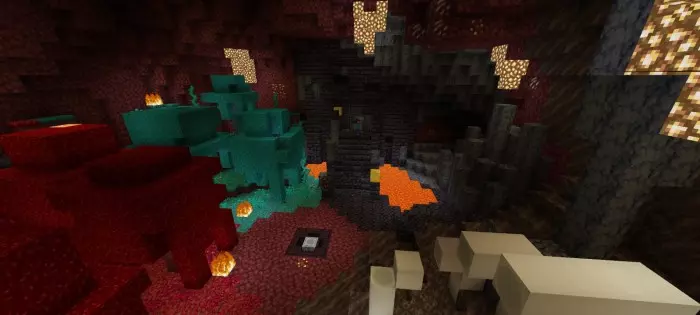
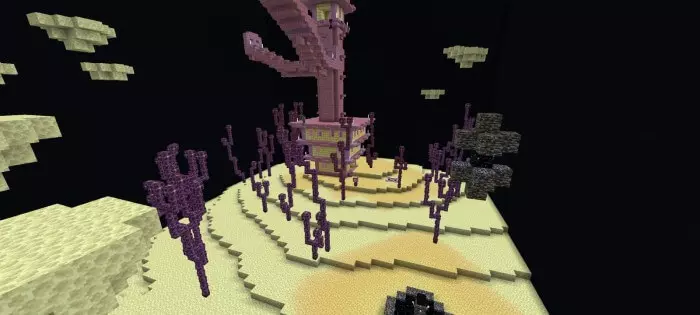
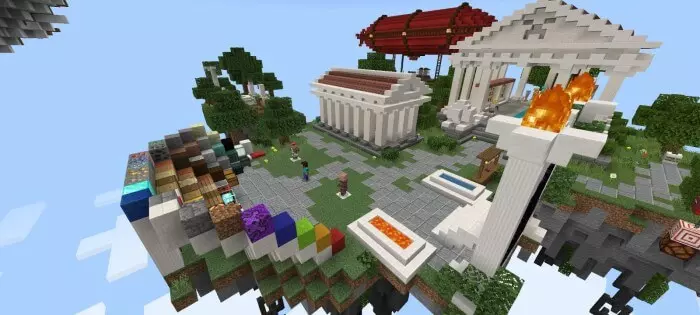
This Minecraft Bedrock map is built around reviewing resource packs, with separate areas for blocks, equipment, mobs, biomes, and more. Load in with a pack you want to try and take a proper look at the things you’ll actually see while playing. The block area is useful when you want to compare building materials, while the equipment section lets you inspect armor, tools, and items up close. Head over to the mob area to see whether the new designs are easy to recognize. A Creeper that looks great standing still might give you a different impression once you imagine spotting it in tall grass at night.
The map also puts those textures into settings that feel closer to an actual adventure. Walk through miniature biome displays, inspect different cave environments, or visit the ocean area to see how a pack handles underwater scenery. There’s a detailed village where you can look at textures across buildings instead of judging every block in isolation. That’s useful if you’re deciding whether a pack suits your next town: a wooden plank might look good on its own, but an entire house tells you much more. You can also visit sections representing the Nether and the End, so checking a pack’s darker blocks and unusual landscapes doesn’t require a separate trip through your survival world.
PvP players have a dedicated area for looking at the blocks, weapons, and armor they use during matches. If you care about how a sword appears on screen or whether items are easy to tell apart in your hotbar, this is a practical place to take a closer look. Other sections are intended for checking add-ons, skies, and music from resource packs. After exploring, an Ender Pearl named “Lobby� can take you back to the main area, saving you a long walk when you want to move on to another test. It’s a nice touch when you’re comparing several packs and keep returning to the same locations.
There’s a reason to explore even when you aren’t reviewing textures. The central ruins take inspiration from a classic Minecraft tutorial world, and twelve music discs are hidden around the area for you to find. Spend some time looking through the lobby, then head into the review zones with a pack you’re curious about. If you make videos, the organized displays can help you show viewers how different parts of a pack look; if you’re choosing one for yourself, they make comparisons much easier. Bring two favorites, visit the same spots with each, and see which one you actually want to live with in your next world.
How to install?
Android: you need to find the downloaded file on your phone, use any file manager for this and import the map into the game by opening it.
IOS: after receiving the map, the device itself will offer to install it.
Windows 10: go to the folder where the files are downloaded, find mcworld there and activate it.
Comments (1)